
TL;DR: You can make an AIOC (or URC, or Model 50) appear to your computer as a standard CM108 sound card, so it works plug and play with AllStarLink and other software with no patches or Python required. Use TF3HR’s browser-based utility at https://g1lro.github.io/aioc-toolkit/ to change the Vendor ID to 0x0D8C and Product ID to 0x000C, click Store to Flash, then unplug and reconnect.
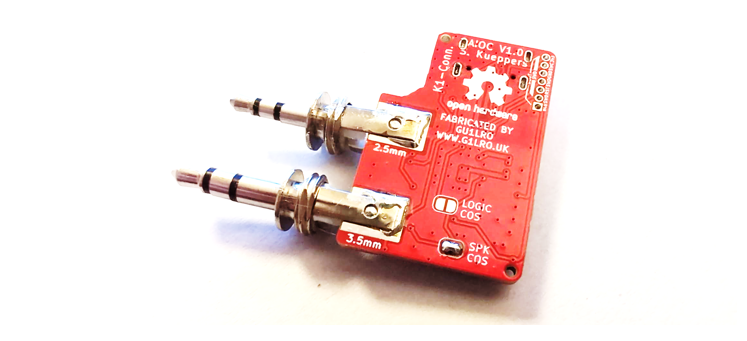
The AIOC, and associated devices like the URC and Model 50 USB transceiver, are based on the same AIOC sound processor. This is a software-defined sound card with a serial port function and several GPIO control lines for PTT, COS and similar functions.
The AIOC is becoming well supported by applications such as AllStarLink (ASL) and DigiPi, but there are still gaps compared with the popular CM108 sound card standard. The CM108 is a sound chip that has been used in PCs and other audio applications for well over a decade, so support for it is effectively universal.
Where an application doesn’t recognise the AIOC, there are two ways forward:
- Modify the application to support the AIOC, either by editing the core software or applying a patch script, or
- Modify the personality of the AIOC so it reports itself to the software as a CM108 and just works, plug and play, with no further tweaking.
In earlier articles on this site the approach has been the first one: modifying the AIOC personality through tortuous Python-based reprogramming, and more recently, with the release of ASL3, applying a small patch to ASL so it recognises the AIOC.
Programming the AIOC to look like a CM108
This is usually the preferred route. It keeps installation simple and removes the extra software steps that can be daunting for some.
The game changer is a web page released by Hrafnkell Eiriksson, TF3HR, which lets us update the identity of the AIOC with the click of a button. No Python, no command line.
The key factors that determine how software recognises a sound card are the Vendor ID (VID) and Product ID (PID). These two numbers tell the USB subsystem in your computer what the device is.
To make the AIOC appear as a CM108, we need to update the following:
| Existing AIOC value | New value to look like CM108 |
|---|---|
| Vendor ID 0x1209 | 0x0D8C |
| Product ID 0x7388 | 0x000C |
Making the changes
TF3HR’s utility and been upgraded by me and now lives at https://g1lro.github.io/aioc-toolkit/
You’ll need a Chrome browser to use it, and in my experience it works best on a Windows PC.
The steps are straightforward:
- Plug the AIOC into your PC
- Browse to https://g1lro.github.io/aioc-toolkit/
- Click Connect at the top right
- Select AIOC-HID from the device list (probably the only item shown)
- Click Connect
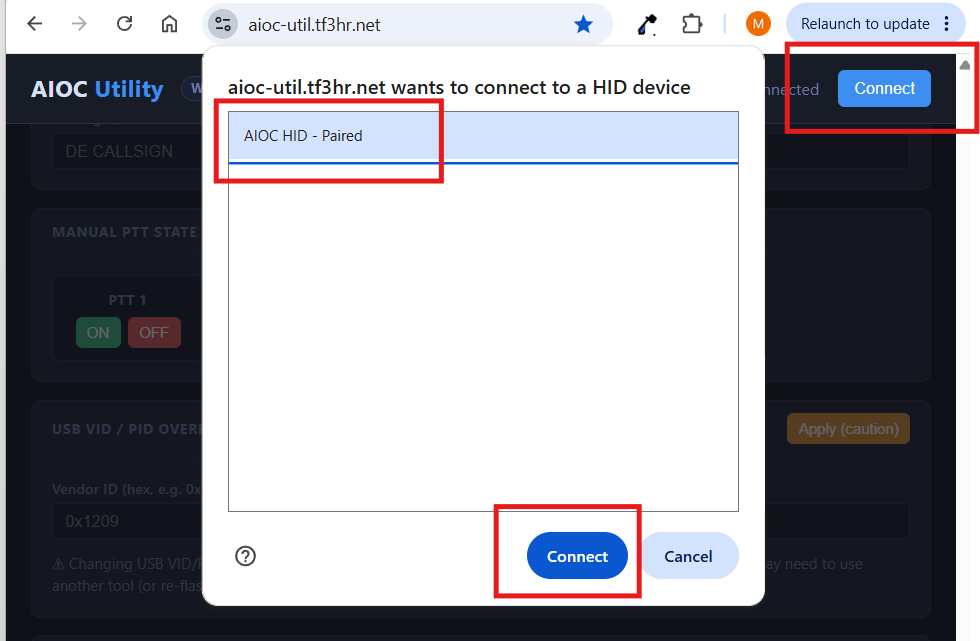
Note: if you want to change the COS setting from Virtual COS (the default) to Hardware COS, do it at this stage. You can’t change it afterwards without re-flashing the AIOC processor.
Changing the identity settings
- Scroll to the section labelled USB VID / PID Override
- Click the button ‘Fill CM108 IDs’ to put the CM108 identity values into the VID and PID boxes
- Click Apply
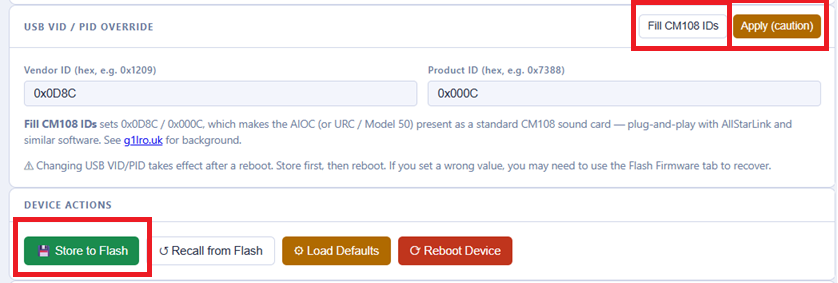
Why the caution? Originally the utility didn’t recognize the AIOC after the IDs were changed. After an update by me, both sets of IDs are recognized now so you can easily change back. -No Worries
Don’t forget to write the changes
So far we’ve only changed the settings in memory. Now we need to write them permanently into the chip:
- Scroll down a little further to the Device Actions section
- Click Store to Flash

Checking your work
The USB settings are read the next time the device is attached, so unplug the AIOC and plug it back in. We’ll check on both Windows and Raspberry Pi.
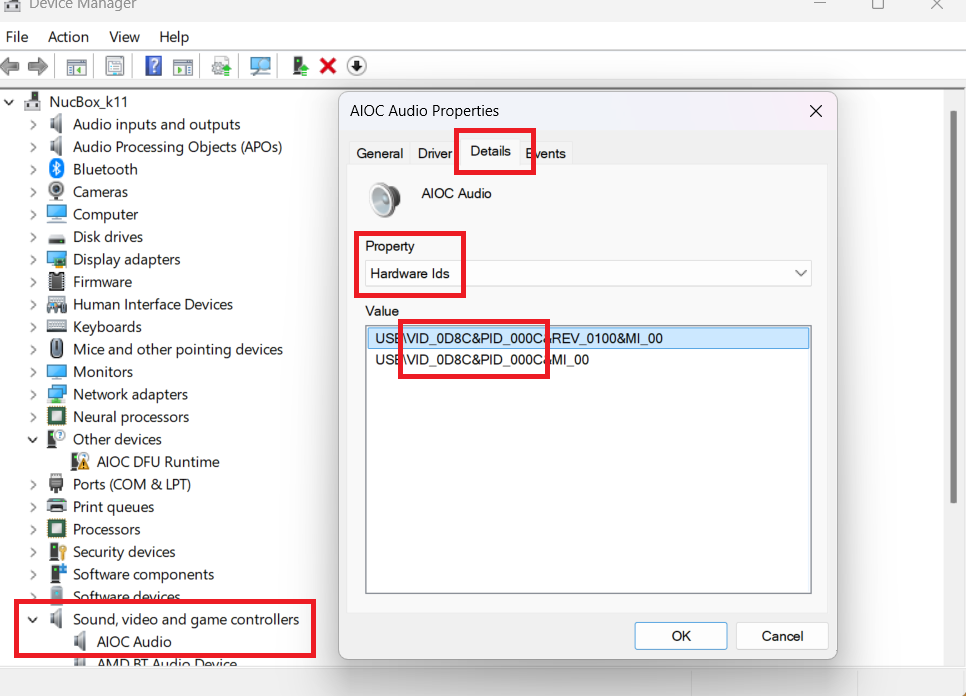
In Windows Device Manager, find the AIOC audio device and look at the Hardware IDs on the Details tab. You’ll see the CM108 IDs.
On your Raspberry Pi (or any Linux machine), type lsusb and you’ll see a C-Media Electronics device (this is the CM108) alongside the new ID numbers.

Your AIOC is now ready for use in AllStarLink and any CM108 application.