
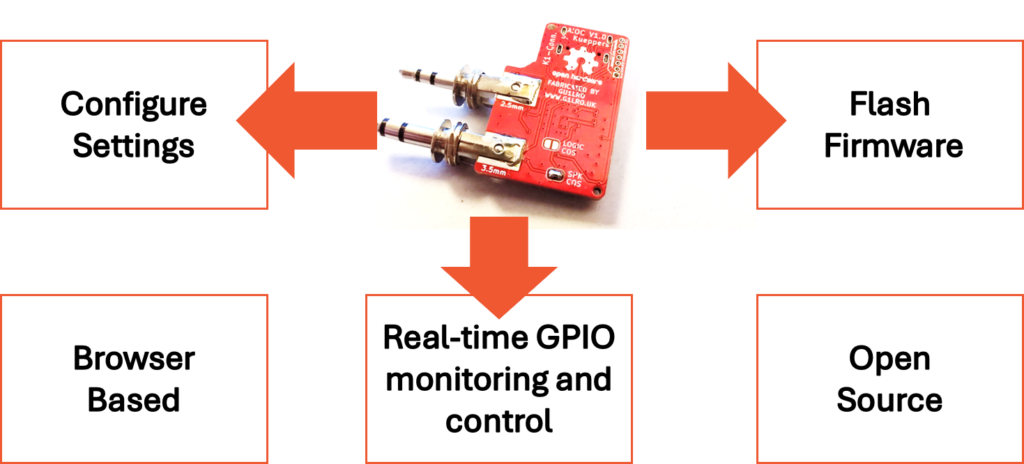
Configure and Flash Your AIOC From One Browser Tab
If you’ve got an AIOC adapter for your handheld radio, you’ve probably used a couple of different tools to look after it: one to set PTT sources, audio gain, and GPIO behaviour, and — separately — dfu-util on the command line whenever new firmware comes out. I’ve combined both jobs into a single page: the AIOC Toolkit.
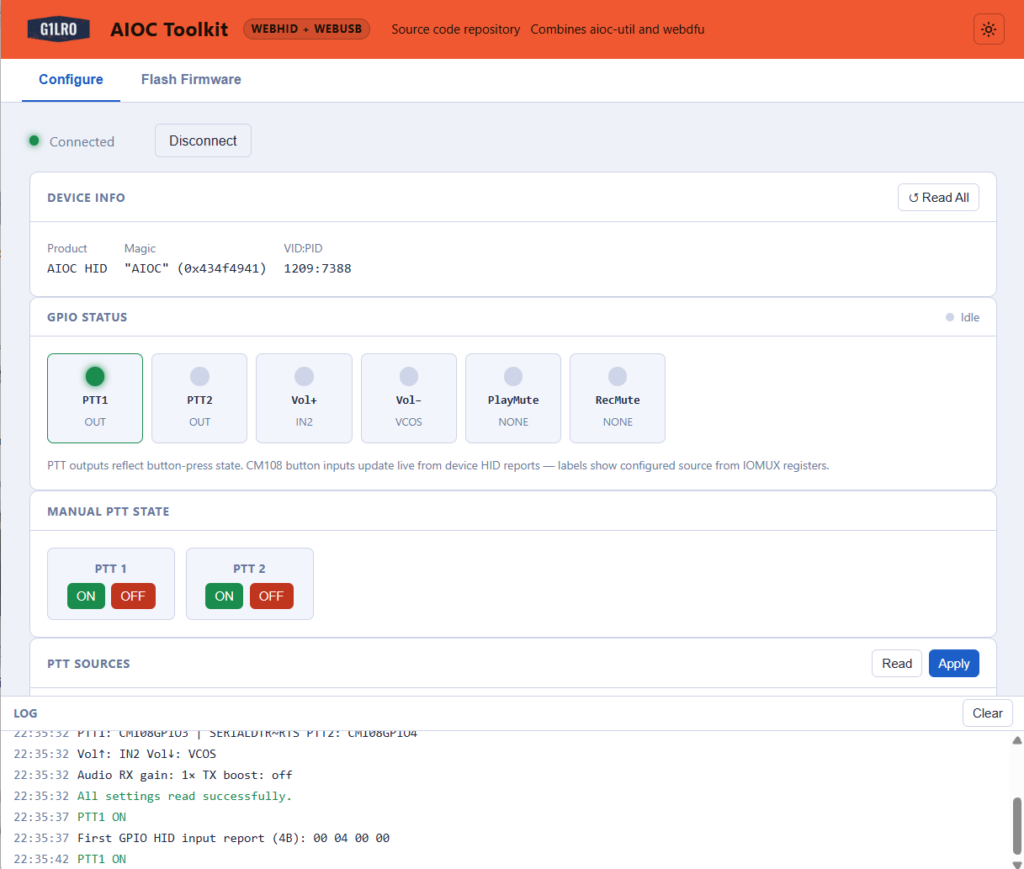
It’s a static web page — no install, no drivers beyond what Chrome already has, nothing to compile. Open it, plug in your AIOC, and go.
Try it here: g1lro.github.io/aioc-toolkit
Source code: github.com/G1LRO/aioc-toolkit
Two tools, one page
The toolkit is split into two tabs. You only ever need one connected at a time, so they don’t get in each other’s way.
Configure
This is the day-to-day tab — everything you’d want while setting up an AIOC for a new radio or AllStarLink node:
- PTT source selection and manual PTT toggles
- CM108 button source mapping
- Audio RX gain / TX boost
- AutoPTT (VPTT) and VCOS threshold tuning
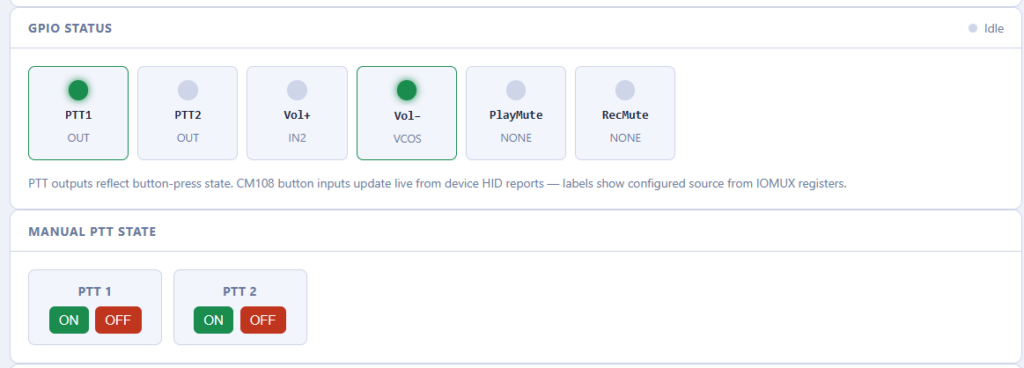
- A live GPIO status panel — the LEDs update in real time as the device reports button and PTT state over USB
- Foxhunt CW beacon configuration
- USB VID/PID override, for setups (like AllStarLink/ASL3) that expect the AIOC to present as a CM108 — there’s a
- One-click “Fill CM108 IDs” button now, so you don’t have to copy the values in by hand
- Raw register dump, for when you want to see exactly what’s stored on the device
It connects over WebHID — click Connect, pick the AIOC from the browser’s device picker, done.
Flash Firmware
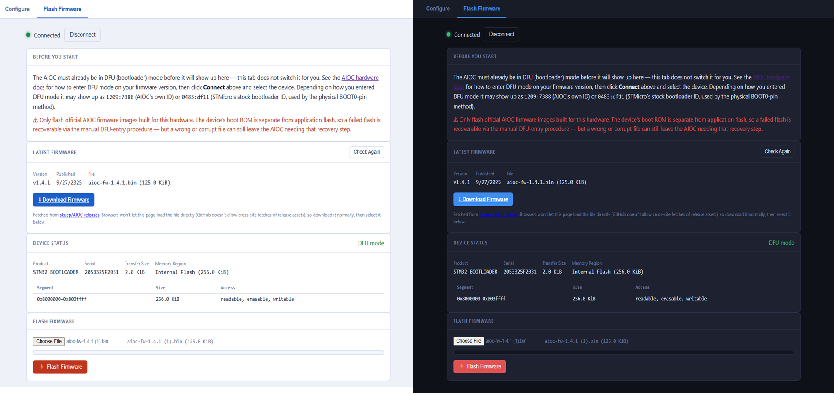
The newer half of the toolkit. This one flashes new firmware onto the AIOC directly from the browser over WebUSB, using the same USB DFU protocol dfu-util uses — no command line needed.
A few things worth knowing about how it works:
- The AIOC has to already be in DFU/bootloader mode before it’ll show up — this page doesn’t flip it into that mode for you. See the AIOC hardware docs for how, depending on your firmware version.
- Once connected, it reads the device’s memory map straight off the hardware and shows you the flash regions before you commit to anything.
- There’s a built-in “Latest Firmware” check that queries GitHub for the newest official AIOC release and links straight to the file, so you don’t have to go hunting for it.
- The AIOC’s boot ROM is separate from its application flash, so a failed or interrupted flash isn’t the end of the world — the manual bootloader-entry procedure gets you back in.
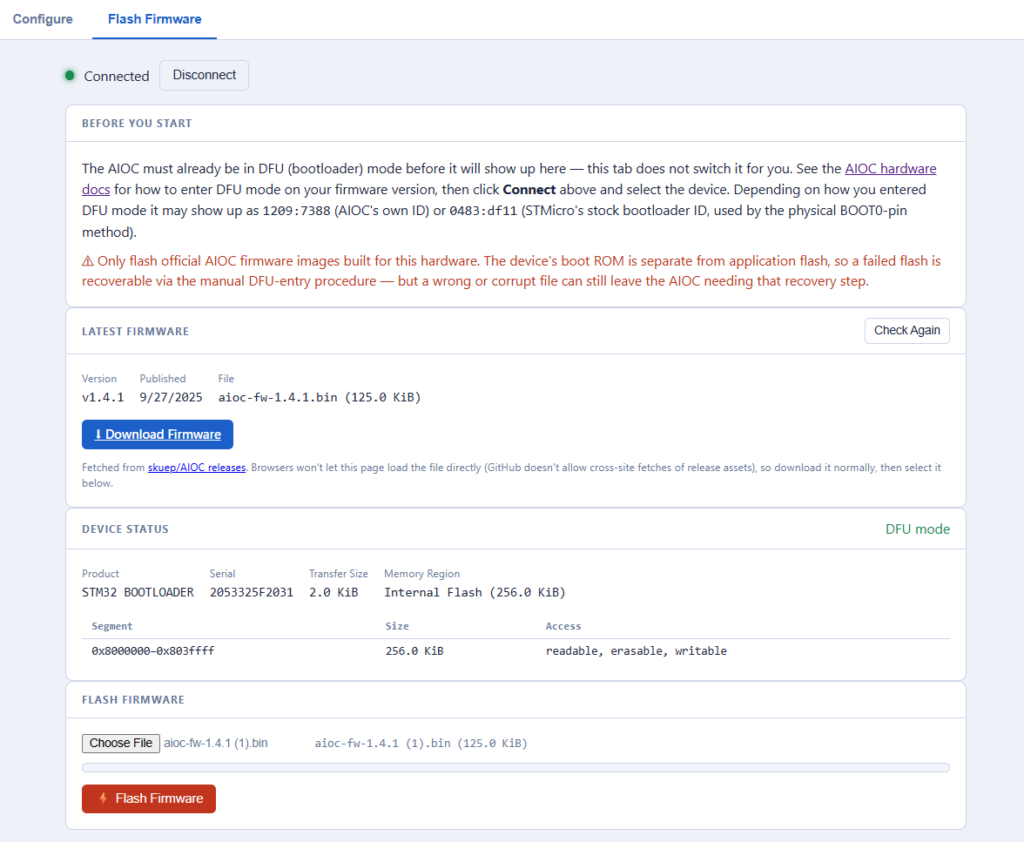
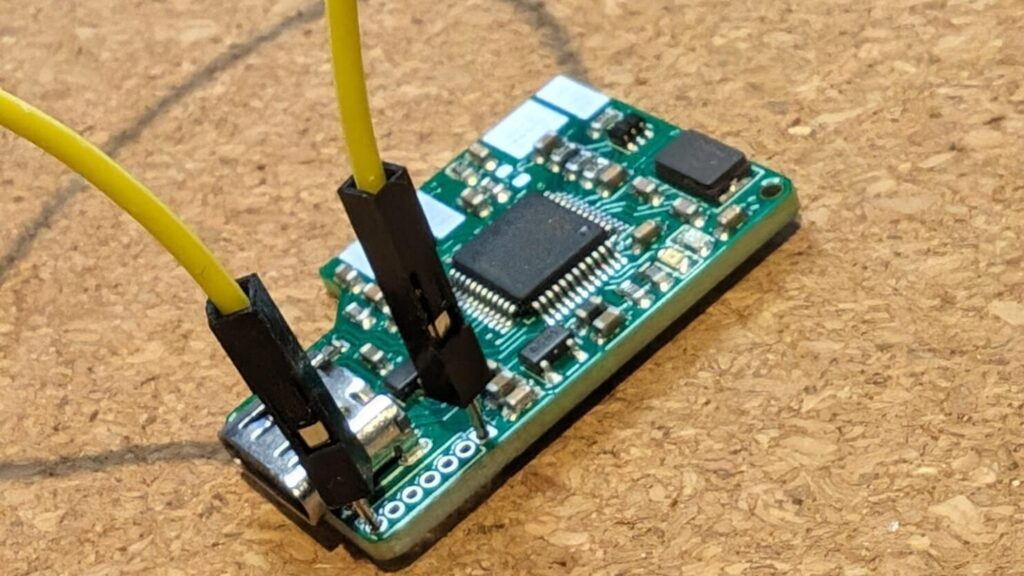
Note: Put the AIOC into DFU Firmware mode by connecting the two outer pins before plugging it in to your USB. This boots STMicro’s stock bootloader rather than the AIOC’s own firmware, so it’ll show up in the browser’s device picker under ST’s ID (0483:df11) rather than the AIOC’s usual one (1209:7388) — that’s expected, the toolkit looks for both..
Light and dark themes
There’s a sun/moon toggle in the header if the default theme isn’t to your taste — your choice is remembered for next time.
Built on other people’s good work
I didn’t start this from a blank page. The Configure tab is based on hrafnkelle/aioc-util by TF3HR, which I’d already contributed the GPIO panel and multi-device connect support to. The Flash Firmware tab’s DFU handling comes from devanlai/webdfu, a browser port of dfu-util‘s protocol logic. Full credit and license details are in the repo’s README.
Give it a go
It’s live at g1lro.github.io/aioc-toolkit right now — just needs Chrome or Edge. If you hit a device that doesn’t show up, or firmware that doesn’t behave, the source is all on GitHub and I’m happy to hear about it.
73,
G1LRO