Oct 1, 2026 · @Mark
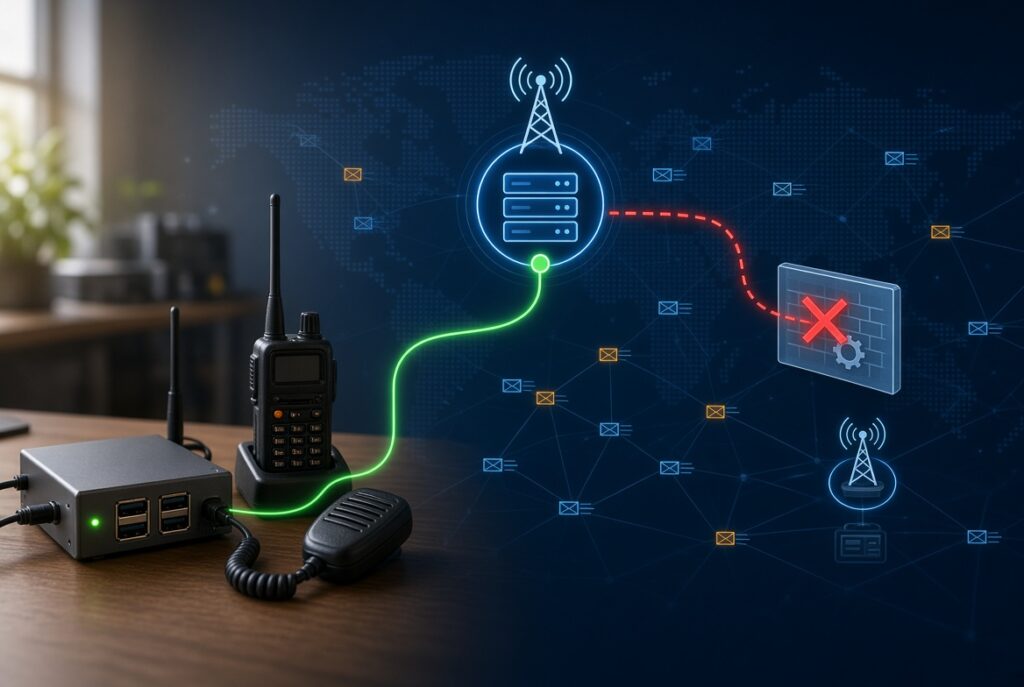
If your AllStarLink 3 node connects happily to hubs and reflectors but fails every time you try to link directly to another node, the cause is almost always your internet connection and how your node is registered. Your radio, your audio settings and your node hardware are very unlikely to be at fault.
This is one of the most common questions we get at G1LRO, so this post walks through why it happens and how to fix it, in order, starting with the simplest checks. You don’t need to be a networking expert to follow it.
Why it happens
AllStarLink works a bit like a telephone directory. When your node starts up, it registers with the central AllStarLink servers and says, in effect, “I am node 12345 and you can reach me at this internet address and port.”
When you ask your node to connect to another node, two things need to go right:
- Your node looks up the other node in the directory to find its address.
- The other node receives your call and usually checks the directory to confirm the call really comes from the address you registered. If the address doesn’t match, the call is refused.
Large hubs and reflectors sit on servers with proper public internet addresses and open ports. Many of them also skip the strict address check. So a connection out to a hub succeeds even when your own setup has a problem.
A direct node-to-node link is less forgiving. It fails if any of these are true:
- Your router isn’t passing incoming AllStar traffic through to your node (no port forward).
- Your internet provider uses Carrier Grade NAT (CGNAT), so the address the directory sees doesn’t match the address other nodes see.
- The node you are calling has one of these problems itself.
The rest of this post works through each of these in turn.
Step 1: Run the node’s built-in check
ASL3 includes a command that checks your node’s configuration, whether it can be reached from the internet, and whether it is registered properly. Log into your node (via SSH or the console in the Cockpit web page) and type:
sudo asl-node-auth-checkKeep a copy of the result. Run it again after each change you make so you can see whether things have improved.
Two further checks are worth doing:
- Visit allstarlink.org/nodelist, type your node number in the filter box, and confirm your node appears. A green background behind the number means it is registered.
- On the node, type
asl-node-lookupfollowed by the number of the node you are trying to reach. If nothing comes back, that node isn’t registered, and the problem is at their end.
Step 2: Check whether you are behind CGNAT
Do this before touching your router settings, because it decides which fix you need.
Carrier Grade NAT is used by many providers to share one public internet address between lots of customers. Think of a block of flats with a single street address and no flat numbers: post can leave, but nothing can find its way back to your door. It is almost universal on mobile hotspots, 4G and 5G routers and “home internet” services that run over the mobile network. Starlink and some fixed broadband providers use it too.
To check:
- Log into your router (usually by typing
192.168.1.1or192.168.0.1into a web browser; the password is often on a sticker on the router). - Find the “WAN” or “Internet” IP address on the status page.
- Visit whatismyip.com and compare the two numbers.
If the numbers match, you have a normal connection. Go to Step 3.
If they differ, or the router’s address starts with anything from 100.64 to 100.127, you are behind CGNAT. Port forwarding won’t help. Skip to Step 4.
Step 3: Set up port forwarding (normal home broadband)
Port forwarding tells your router: “when AllStar traffic arrives from the internet, send it to my node.” Without it, your router throws incoming calls away.
You need two settings on your router:
- A fixed local address for your node. Look for “DHCP reservation”, “static lease” or “address reservation”, usually under LAN or Network settings. Reserve the node’s current address so it doesn’t change after a power cut. You can find the node’s address by typing
hostname -Ion the node. - A port forward rule. Look for “Port Forwarding”, “Virtual Server”, “NAT” or a section under “Firewall” or “Advanced”. Create a rule with protocol UDP, external and internal port 4569, pointing at your node’s local address.
Every router brand lays these menus out differently. portforward.com has screen-by-screen guides for most models, and your broadband provider’s support pages often cover the router they supplied.
If you have changed your node’s IAX port from the default 4569, forward that port instead. It must also match the IAX port in your server settings on the AllStarLink Portal.
Once the rule is saved, restart the node and run asl-node-auth-check again.
Step 4: If you are behind CGNAT
The AllStarLink team lists CGNAT as a known issue: nodes behind it are unsupported when their traffic doesn’t leave through a consistent public address. In practice the registration servers often see your node arriving from one address while the node you call sees another, so the call is refused. The AllStarLink manual’s known issues page explains this in more detail.
There are three workarounds, from simplest to most robust.
1. Switch to IAX-based registration. By default ASL3 registers over the web (HTTP). Switching to IAX registration sends the registration over the same route as your calls, so the addresses are far more likely to match. It is a small configuration change and the best first thing to try. This video walks through it: Mobile AllStar Node Connect Issues? Try This. The manual’s write-up is here: IAX-Based Registration.
2. Use 44Net Connect. Licensed amateurs can get a routed 44Net address through a WireGuard tunnel, which gives your node a proper public address regardless of your provider. See 44Net Connect for ASL in the manual.
3. Use your own VPN or tunnel. If you already run a VPN service or a server with a public address, you can route your node’s traffic through it.
Be aware of one limitation. Behind CGNAT, the best you can usually hope for is outgoing connections working. Other people won’t be able to connect into your node, and remote access tools such as Allmon3 won’t be reachable from outside, unless you use option 2 or 3.
Other things to check
Try several different nodes. The node you are calling may have the problem. Try connecting to three or four different, active nodes. If some work and others fail, the fault is at their end. If all of them fail, it is at yours.
Private nodes can’t be reached. Node numbers 1999 and below are private and only work within a single system. You need a public node number from the AllStarLink Portal to link with other nodes.
The node’s own firewall. The ASL3 appliance image includes a firewall managed through the Cockpit web page. Make sure UDP 4569 is allowed there as well as on your router.
Watch the log while connecting. Log into the node, type sudo asterisk -rvvv, then try the connection and read the messages that appear:
- A message that the node can’t be found points to a registration or lookup problem (Step 1).
- A timeout or no answer means the other node can’t be reached, usually a port forwarding or CGNAT problem at one end (Steps 2 to 4).
- A rejected call means the other node is refusing you, often the address mismatch caused by CGNAT (Step 4).
Type exit to leave the log view.
Quick checklist
- Node shows as registered on the AllStarLink node list
asl-node-auth-checkrun and result saved- Router WAN address compared with whatismyip.com
- Normal connection: DHCP reservation set for the node
- Normal connection: UDP 4569 forwarded to the node
- CGNAT: switched to IAX-based registration
- CGNAT and incoming calls needed: 44Net Connect or VPN set up
- Node firewall in Cockpit allows UDP 4569
- Tested against three or four different nodes
Further help
- AllStarLink manual: Basic Troubleshooting Tips
- AllStarLink manual: Known Issues (CGNAT)
- AllStarLink manual: IAX-Based Registration
- AllStarLink manual: 44Net Connect for ASL
- Video: Mobile AllStar Node Connect Issues? Try This
- portforward.com router-specific port forwarding guides
- AllStarLink Community Forum, where you can search for your problem or post a question
When asking for help on the forum, include the output of asl-node-auth-check, your router make and model, and how your node connects to the internet. It will get you a useful answer much faster.
73 de Mark, G1LRO